read-9
What is a text editor?
A text editor is a piece of software that you download and install on your computer, or you access online through your web browser, that allows you to write and manage text, especially the text that you write to build a web site. The text editor has to be one of the most important tools you can use as an aspiring web developer.
- the text editor that comes with your computer is called, “Text Edit.” On Windows computers, the text editor that comes with your computer is called, “Notepad.”
Since these text editors already come on your computers, why should you download yet another text editor that does essentially the same thing as the text editor that you already have? There are other text editors that have features that you may be interested in, like the ones we discussed before. Usually, the text editors that come on your computer don’t have many features to speak of. They’re the barest bare bones text editors you’ll encounter.
Third-Party Options
Let’s talk about software like:
- Notepad++
- Text Wrangler
- BB Edit
- Visual Studio Code
- Atom
- Brackets
- and Sublime Text.
- These text editors can all be downloaded and installed to your computer from their respective websites.
Visual Studio Code
Visual Studio Code is a free text editor made by the folks at Microsoft. It is available for Windows computers, Mac computers and Linux computers. VS Code has the Emmet shorthand for HTML and CSS already built-in with no additional work from you at all. VS Code has everything: syntax highlighting, themes, extensions and code completion. It seems like VS Code has a very healthy following in the web developing community.

The Command Line
The command line is an interesting beast, and if you’ve not used one before, can be a bit daunting. Don’t worry, with a bit of practice you’ll soon come to see it as your friend. Don’t think of it as leaving the GUI behind so much as adding to it. While you can leave the GUI alltogether, most people open up a command line interface just as another window on their desktop (in fact you can have as many open as you like). This is also to our advantage as we can have several command lines open and doing different tasks in each at the same time. We can also easily jump back to the GUI when it suits us. Experiment until you find the setup that suits you best.
A command line, or terminal, is a text based interface to the system. You are able to enter commands by typing them on the keyboard and feedback will be given to you similarly as text.
The command line typically presents you with a prompt. As you type, it will be displayed after the prompt. Most of the time you will be issuing commands.

Opening a Terminal
Opening a terminal is fairly easy. I can’t tell you exactly how to do it as every system is different but here are a few places to start looking.
- If you’re on a Mac then you’ll find the program Terminal under Applications -> Utilities. An easy way to get to it is the key combination ‘command + space’ which will bring up Spotlight, then start typing Terminal and it will soon show up.
- If on Linux then you will probably find it in Applications -> System or Applications -> Utilities. Alternatively you may be able to ‘right-click’ on the desktop and there may be an option ‘Open in terminal’.
- If you are on Windows and intend to remotely log into another machine then you will need an SSH client. A rather good one is Putty (free).
Basic Navigation
- The first command is pwd which stands for Print Working Directory. (You’ll find that a lot of commands in linux are named as an abbreviation of a word or words describing them. This makes it easier to remember them.) The command does just that. It tells you what your current or present working directory is.
Paths
Whenever we refer to either a file or directory on the command line, we are in fact referring to a path. ie. A path is a means to get to a particular file or directory on the system. There are 2 types of paths we can use, absolute and relative
-
Absolute paths specify a location (file or directory) in relation to the root directory. You can identify them easily as they always begin with a forward slash ( / )
-
Relative paths specify a location (file or directory) in relation to where we currently are in the system. They will not begin with a slash.
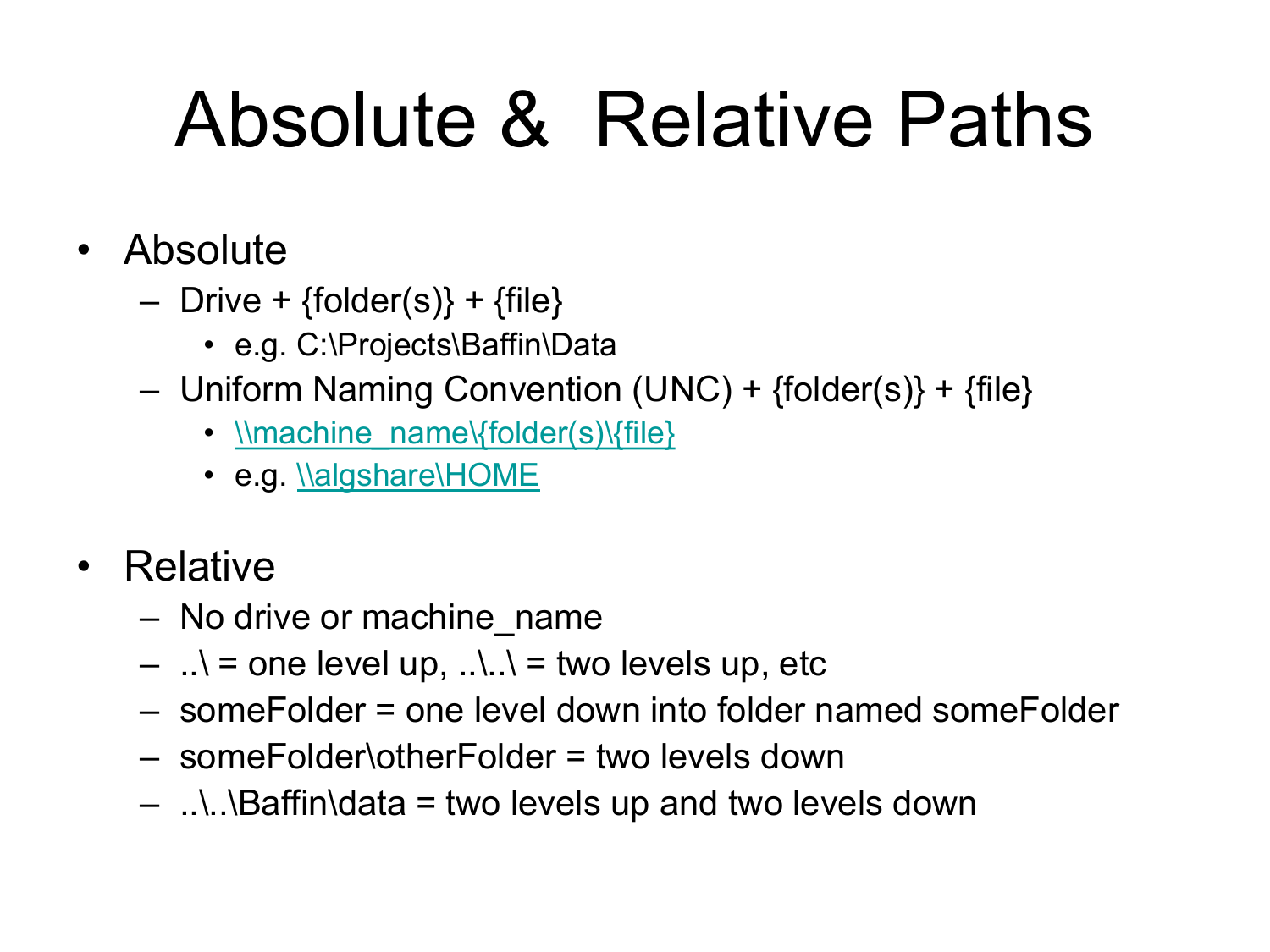
In order to move around in the system we use a command called cd which stands for change directory. It works as follows: cd [location] If you run the command cd without any arguments then it will always take you back to your home directory.
Everything is a file
everything is actually a file. A text file is a file, a directory is a file, your keyboard is a file (one that the system reads from only), your monitor is a file (one that the system writes to only) etc. To begin with, this won’t affect what we do too much but keep it in mind as it helps with understanding the behaviour of Linux as we manage files and directories.
Linux is an Extensionless System
Linux is Case Sensitive
This one can sometimes be hard to get your head around but as you work through the sections it will start to make more sense. A file extension is normally a set of 2 - 4 characters after a full stop at the end of a file, which denotes what type of file it is. The following are common extensions:
- file.exe - an executable file, or program.
- file.txt - a plain text file.
- file.png, file.gif, file.jpg - an image.
In other systems such as Windows the extension is important and the system uses it to determine what type of file it is.
Spaces in file and directory names are perfectly valid but we need to be a little careful with them
- Quotes The first approach involves using quotes around the entire item. You may use either single or double quotes (later on we will see that there is a subtle difference between the two but for now that difference is not a problem). Anything inside quotes is considered a single item.
-
Escape Characters Another method is to use what is called an escape character, which is a backslash ( \ ). What the backslash does is escape (or nullify) the special meaning of the next character.
- Hidden Files and Directories To make a file or directory hidden all you need to do is create the file or directory with it’s name beginning with a . or rename it to be as such. Likewise you may rename a hidden file to remove the . and it will become unhidden. The command ls which we have seen in the previous section will not list hidden files and directories by default. We may modify it by including the command line option -a so that it does show hidden files and directories.