class-11
From the Duckett HTML book
Images
Controlling Sizes Of Images In CSS:
You can control the size of an image using the width and height properties in CSS, just like you can for any other box. Specifying image sizes helps pages to load more smoothly because the HTML and CSS code will often load before the images, and telling the browser how much space to leave for an image allows it to render the rest of the page without waiting for the image to download.

Aligning images Using CSS
using the element’s align attribute, web page authors are increasingly using the float property to align images. There are two ways that this is commonly achieved:
- The float property is added to the class that was created to represent the size of the image (such as the small class in our example).
- New classes are created with names such as align-left or align-right to align the images to the left or right of the page. These class names are used in addition to classes that indicate the size of the image.
Centering images Using CSS:
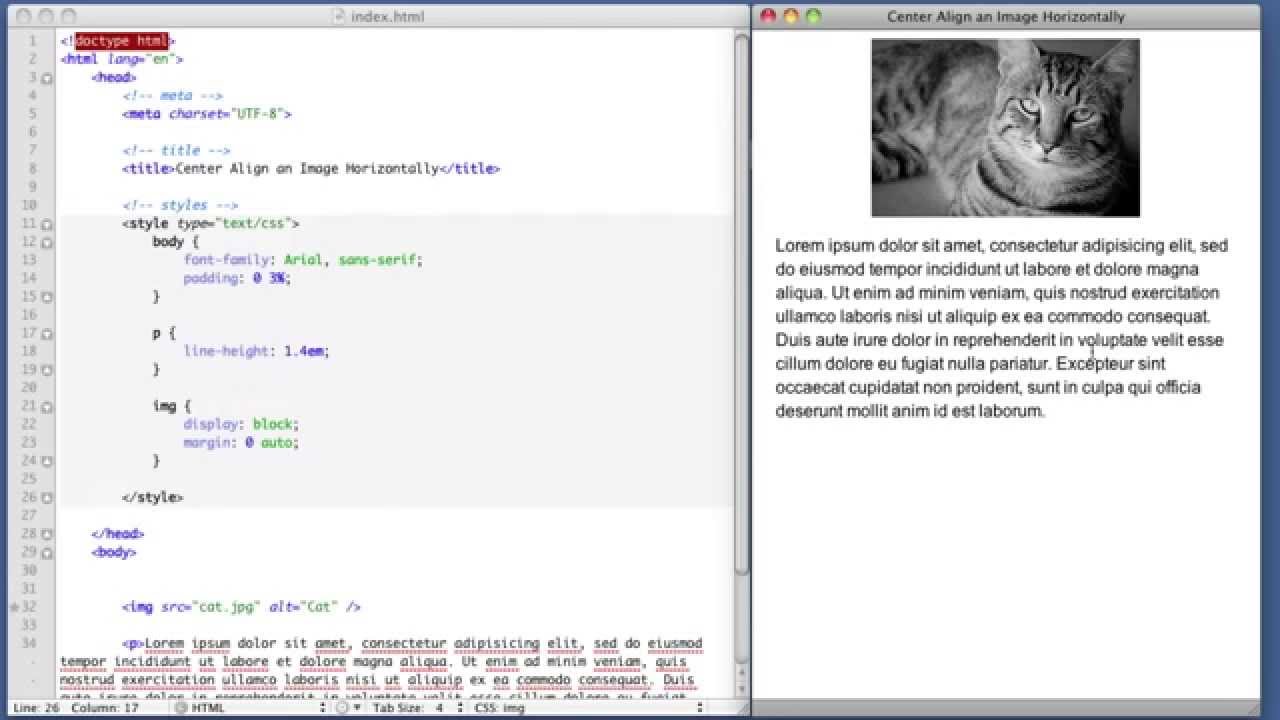
By default, images are inline elements. This means that they flow within the surrounding text. In order to center an image, it should be turned into a blocklevel element using the display property with a value of block. Once it has been made into a block-level element, there are two common ways in which you can horizontally center an image:
- On the containing element, you can use the text-align property with a value of center.
- On the image itself, you can use the use the margin property and set the values of the left and right margins to auto.
Background Images :background-image
The background-image property allows you to place an image behind any HTML element. This could be the entire page or just part of the page. By default, a background image will repeat to fill the entire box. The path to the image follows the letters url, and it is put inside parentheses and quotes.
Repeating Images: background-repeat background-attachment
The background-repeat property can have four values:
- repeat The background image is repeated both horizontally and vertically (the default way it is shown if the backgroundrepeat property isn’t used).
- repeat-x The image is repeated horizontally only (as shown in the first example on the left).
- repeat-y The image is repeated vertically only.
- no-repeat The image is only shown once. The background-attachment property specifies whether a background image should stay in one position or move as the user scrolls up and down the page. It can have one of two values:
- fixed The background image stays in the same position on the page.
- scroll The background image moves up and down as the user scrolls up and down the page.
Background Position
When an image is not being repeated, you can use the background-position property to specify where in the browser window the background image should be placed. This property usually has a pair of values. The first represents the horizontal position and the second represents the vertical.

shorthand background
The background property acts like a shorthand for all of the other background properties you have just seen, and also the background-color property. The properties must be specified in the following order, but you can miss any value if you do not want to specify it.
- background-color
- background-image
- background-repeat
- background-attachment
- background-position
Image Rollovers & sprites:
Using CSS, it is possible to create a link or button that changes to a second style when a user moves their mouse over it (known as a rollover) and a third style when they click on it. When a single image is used for several different parts of an interface, it is known as a sprite. You can add the logo and other interface elements, as well as buttons to the image. The advantage of using sprites is that the web browser only needs to request one image rather than many images, which can make the web page load faster
CSS3: Gradients
CSS3 is going to introduce the ability to specify a gradient for the background of a box. The gradient is created using the background-image property and, at the time of writing, different browsers required a different syntax. Since it is not supported by all browsers, it is possible to specify a background image for the box first (which would represent the gradient) and then provide the CSS alternatives for browsers that support gradients.
Contrast of background images:
If you want to overlay text on a background image, the image must be low contrast in order for the text to be legible.
- High Contrast: The majority of photographs have quite a high contrast, which means that they are not ideal for use as a background image.
- Low Contrast : Image editing applications such as Photoshop and GIMP have tools that allow you to manually adjust your images to have lower contrast.
- Screen To overlay text on an image with high contrast, you can place a semi-transparent background color (or “screen”) behind the text to improve legibility.
Practical Information
Search Engine Optimization (SEO)
SEO is a huge topic and several books have been written on the subject. The following pages will help you understand the key concepts so you can improve your website’s visibility on search engines.

On-Page SEO
In every page of your website there are seven key places where keywords (the words people might search on to find your site) can appear in order to improve its findability.
- Page Title: The page title appears at the top of the browser window or on the tab of a browser. It is specified in the
element which lives inside the <head> element. - URL / Web Address The name of the file is part of the URL. Where possible, use keywords in the file name.
- Headings If the keywords are in a heading element then a search engine will know that this page is all about that subject and give it greater weight than other text.
- Text Where possible, it helps to repeat the keywords in the main body of the text at least 2-3 times. Do not, however, over-use these terms, because the text must be easy for a human to read.
- Link Text Use keywords in the text that create links between pages (rather than using generic expressions such as “click here”).
- Image Alt Text Search engines rely on you providing accurate descriptions of images in the alt text. This will also help your images show up in the results of image-based searches.
- Page Descriptions The description also lives inside the element and is specified using a tag. It should be a sentence that describes the content of the page. (These are not shown in the browser window but they may be displayed in the results pages of search engines.)
How to Identify Keywords and Phrases
Determining which keywords to use on your site can be one of the hardest tasks when you start to think about SEO. Here are six steps that will help you identify the right keywords and phrases for your site.
- Brainstorm
- Organize
- Research
- Compare
- Refine
- Map
Analytics: Learning about your Visitors
As soon as people start coming to your site, you can start analyzing how they found it, what they were looking at and at what point they are leaving. One of the best tools for doing this is a free service offered by Google called Google Analytics.
How Many People Are Coming to Your Site?
- Visits This is the number of times people have come to your site. If someone is inactive on your site for 30 minutes and then looks at another page on your site, it will be counted as a new visit.
- Unique Visits This is the total number of people who have visited your site over the specified period. The number of unique visits will be lower than the number of visits if people have been returning to your site more than once in the defined period.
- Page Views The total number of pages all visitors have viewed on your site.
- Pages per Visit The average number of pages each visitor has looked at on your site per visit.
- Average Time on Site The average amount of time each user has spent on the site per visit.
- Date Selector Using the date selector in the top right hand corner of the site, you can change the period of time the reports display. When you log in, this is usually set to the last month, but you can change it to report on a specific time period.
- Export The export link just above the title that says “visitors overview” allows you to export the statistics on this page for other applications such as Excel
What Are Your Visitors Looking At?
The content link on the left-hand side allows you to learn more about what the visitors are looking at when they come to your site.
Where Are Your Visitors Coming From?
The traffic sources link on the left hand side allows you to learn where your visitors are coming from.
Domain Names & Hosting
- DOMAIN NAMES WEB HOSTING: Your domain name is your web address (e.g. google.com or bbc. co.uk). There are many websites that allow you to register domain names. Usually you will have to pay an annual fee to keep that domain name. These sites usually have a form that allows you to check whether your preferred domain name is available, and because millions of domain names have already been registered, it might take you a while to find the one that is right for your site.
- WEB HOSTING: So that other people can see your site, you will need to upload it to a web server. Web servers are special computers that are constantly connected to the Internet. They are specially set up to serve web pages when they are requested.
FTP & Third Party Tools
To transfer your code and images from your computer to your hosting company, you use something known as File Transfer Protocol.
Many companies provide platforms for blogging, email newsletters, e-commerce and other popular website tools (to save you writing them from scratch).
The HTMLMediaElement API makes a wealth of functionality available for creating simple video and audio players, and that’s only the tip of the iceberg. See the “See also” section below for links to more complex and interesting functionality. Here are some suggestions for ways you could enhance the existing example we’ve built up:
- The time display currently breaks if the video is an hour long or more (well, it won’t display hours; just minutes and seconds). Can you figure out how to change the example to make it display hours?
- Because
- Can you work out a way to turn the timer inner <div> element into a true seek bar/scrobbler — i.e., when you click somewhere on the bar, it jumps to that relative position in the video playback? As a hint, you can find out the X and Y values of the element’s left/right and top/bottom sides via the getBoundingClientRect() method, and you can find the coordinates of a mouse click via the event object of the click event, called on the Document object.
How Flash Works

Since the late 1990s, Flash has been a very popular tool for creating animations, and later for playing audio and video in websites.
Use of Flash
Since 2005, a number of factors have meant that fewer websites are written in Flash or even use elements of Flash in their pages. When Flash was first released, it was developed to create animations. The technology quickly evolved, however, and people started to use it to build media players and even entire websites. Although Flash is still very popular, in recent years people have been more selective about when they use it (and now rarely consider building an entire website in Flash). Despite this, Flash does have a future on the web because there are some things it does very well, such as creating animations.